

Keywords: Bank Transaction, Expenses, Reports, Quickbooks
Credit: Intuit- Quickbooks Online Photo By: FP
Struggling to Keep Your Books in Order? 📊📅
Let us handle the numbers while you focus on growing your business! Get expert bookkeeping support tailored to your needs.
👉 Click Here for a Free Consultation!
Before looking closer at the categorization methods yourself, it’s worth taking the time to understand the structure of transactions. To best understand how QuickBooks handles these various categorization methods, let’s consider the concept of sources and targets to help you see how these categorizations work best, and help you determine which is best to use in a situation.
Transaction headers
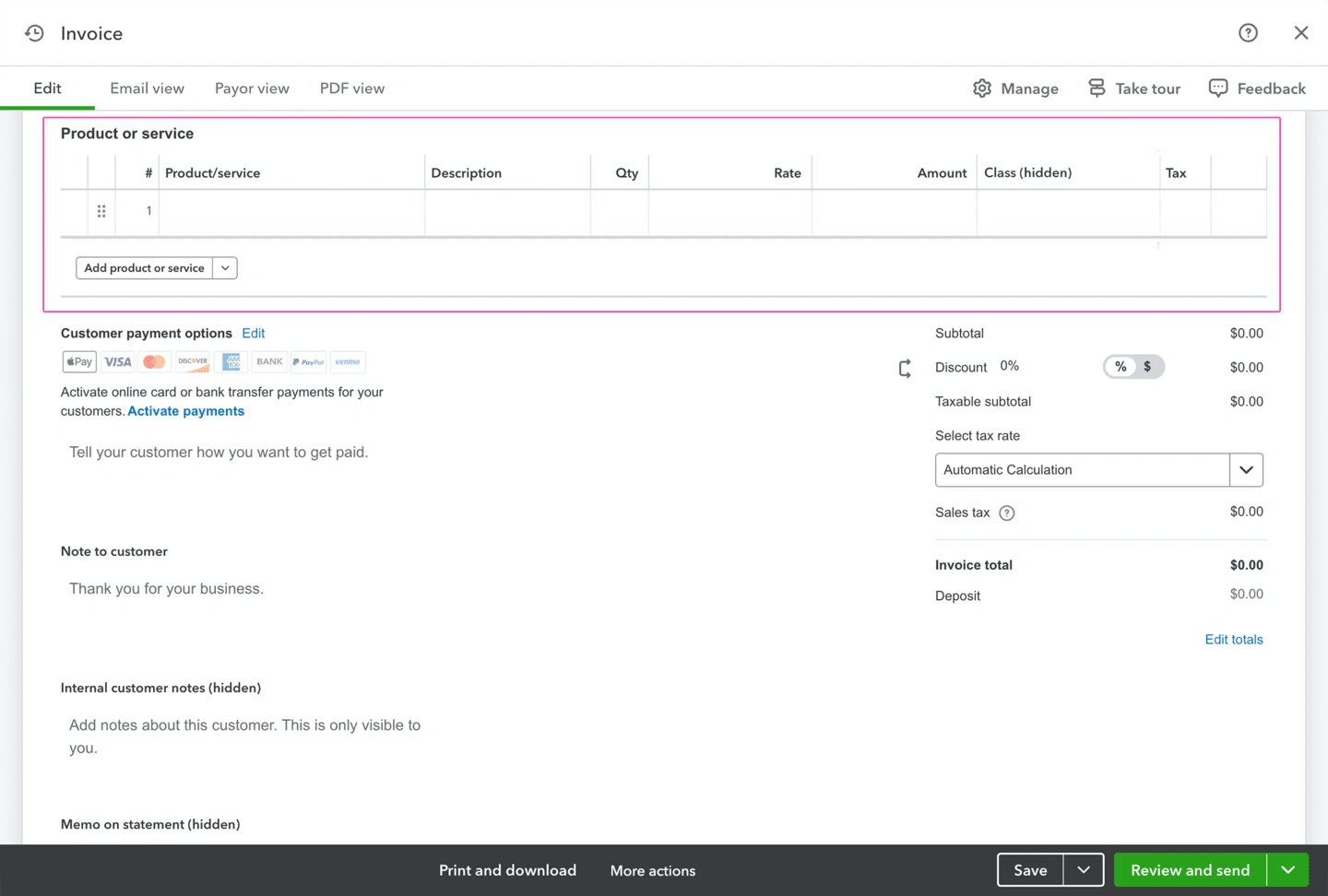
The header of a transaction contains the summary information that is unique to the transaction, and is relevant to every line of the transaction. This includes the transaction date and type, and information about the customer or vendor. The header also includes the relevant balance sheet account, although you can’t see that as you enter all transaction types. The header is the transaction source. Source accounts are always balance sheet accounts, such as bank, undeposited funds, accounts receivable, accounts payable, or credit card-type accounts. The custom categorization methods that can be added to the source are custom fields and locations, as they relate to the whole transaction.

Line items
The line items in the details section of a transaction can point to different accounts. These are the distribution lines, or targets.
For transactions that involve products or services, the setup of the product/service determines the target account.
A transaction can only have one source, but it can have many target lines.
The only categorization that can be different on each target line is class. You’ll see shortly that class can either be added to individual target lines, or added to all lines at once in the header. Regardless of the method chosen, classes are always applied to the target line.
Viewing Transactions journals
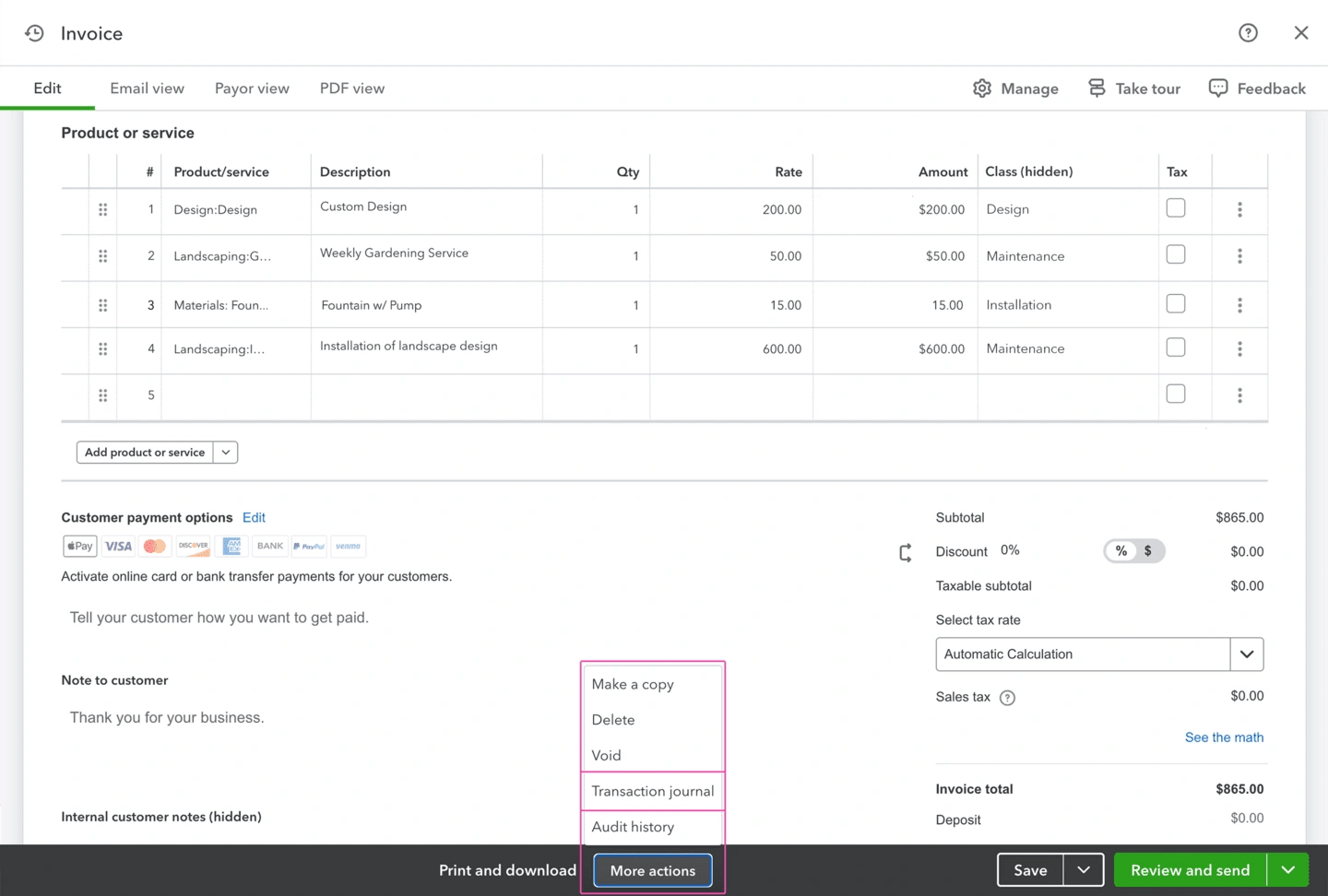
To see the details of the source and target accounts of a transaction after you have created it, open the Transaction journal from the More actions menu.
Transaction journal details
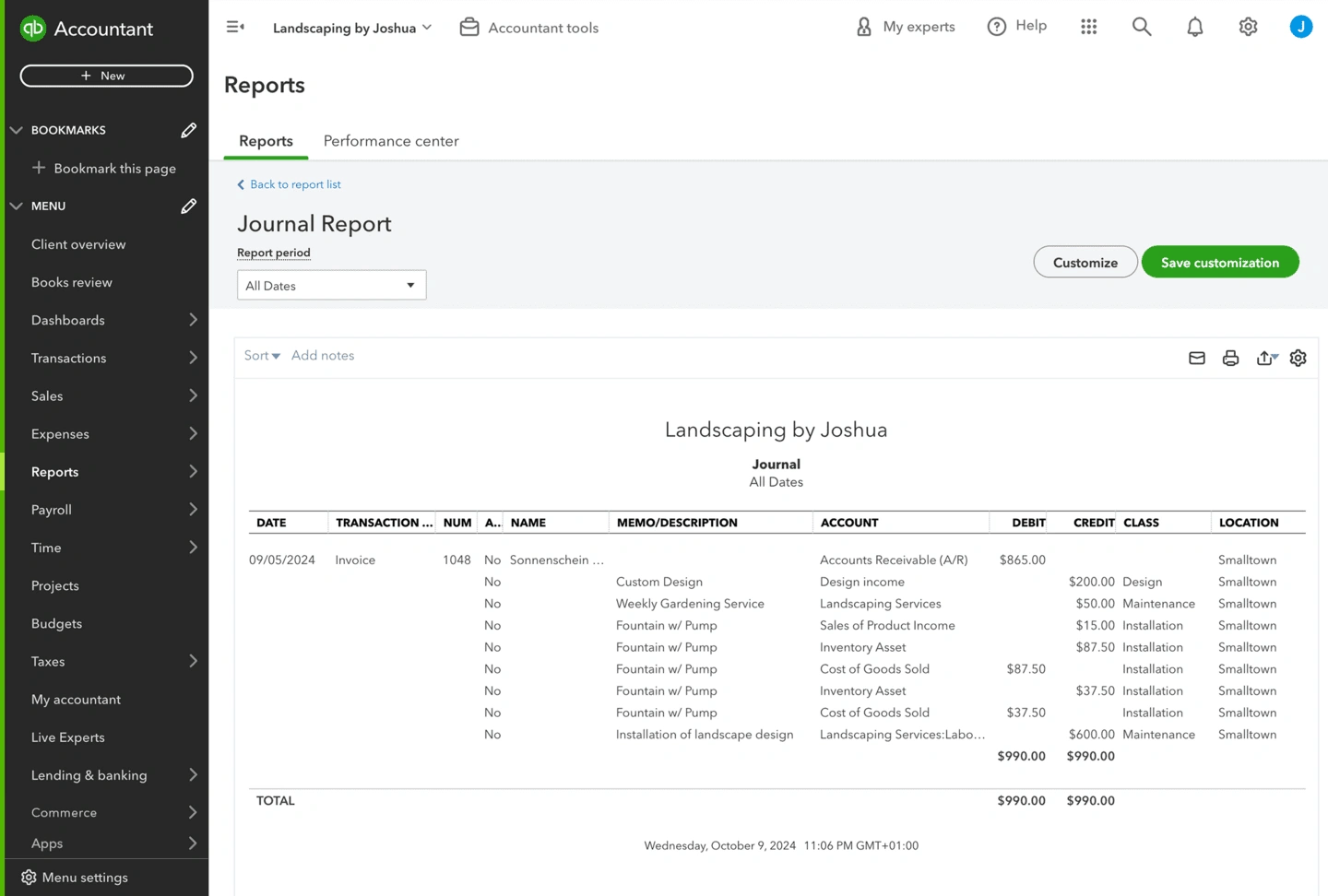
The first line of the report contains the source data. The rest of the lines are target data that show how the transaction was distributed to the general ledger.
For example, in an invoice transaction, the accounts receivable category and the total amount of the invoice are considered the source of the transaction. The targets of the transaction are the accounts it is distributed to, for example, income, cost of goods sold, inventories, and sales tax.
Selecting the List settings gear on the transaction journal will allow you to show the class and location columns on the report too.
A note on journal entries
Journal entries are the only transactions that don’t have a source and at least one target, so custom categorization methods can’t be used in the same way. Locations and classes can be used on journal entries, but custom fields can’t.
This means you should be careful about how and when journal entries are made, and the impact this could have on custom reporting.
Introduction to the three categorization types
Now that you’ve seen the structure of transactions, let’s take a look at the custom categorizations. One or all of these methods can be used within your account, depending on your reporting requirements and the QuickBooks plan they are on.
Custom fields
Custom fields are fields that can be added to sales forms in QuickBooks Essentials and up, to purchase orders in QuickBooks Online Plus and Advanced, and to customers, vendors, and other purchase transactions in QuickBooks Online Advanced. In QuickBooks Essentials and Plus, custom fields allow only free text entry, whereas in QuickBooks Online Advanced, custom fields can have a range of different formats, and can be applied to a wider range of transactions. Custom fields are added at the header level of transactions.
Classes
A class is a single field that can be added to a transaction (or each target line of a transaction). Classes can be assigned to a product or service to be the default class used in a transaction when the item is sold or purchased. They can also be added to a bank transaction in the bank feed. Classes are a great way to gain operational insights, such as comparing the performance of departments or divisions.
Classes are available in QuickBooks Online Plus and Advanced, and usage limits apply.
Classes are applied to the targets of transactions, so multiple classes might apply to the same transaction.
Locations
If you have premises in different locations, the location field can be used to identify the QuickBooks data related to each of these. This makes it easy to run reports by location and make comparisons between them.
Locations are available in QuickBooks Online Plus and Advanced, and usage limits apply.
Locations are added in the header, but apply to both the source and the target of transactions. Each transaction can only have one location associated with it. They can be added to sales and purchase transactions, and to bank transactions in the bank feed.
A note on tags
You may be aware of tags-another categorization method that was previously available in QuickBooks. This feature is being phased out. You will not be able to create any new tags, but will be able to see any previously created tags in read-only form, and run reports using tags for the next few years to help with the transition.
As this feature is being phased out, it is not covered in detail in this training.
Comparing custom categorization types
Now, let’s take a high-level look at each of the category types together, to see how they compare.

Reports in the Reports center
None—however, many reports can be grouped or filtered by custom fields
- Class list
- Profit and Loss by Class
- Sales by Class Summary
- Sales by Class Detail
- Purchases by Class Detail
- Locations list
- Profit and Loss by Location
- Sales by Location Summary
- Sales by Location Detail
- Purchases by Location Detail
*
Custom fields can only be applied to purchase orders in QuickBooks Online Plus, and to purchase transactions and lists in QuickBooks Online Advanced.
Usage limits
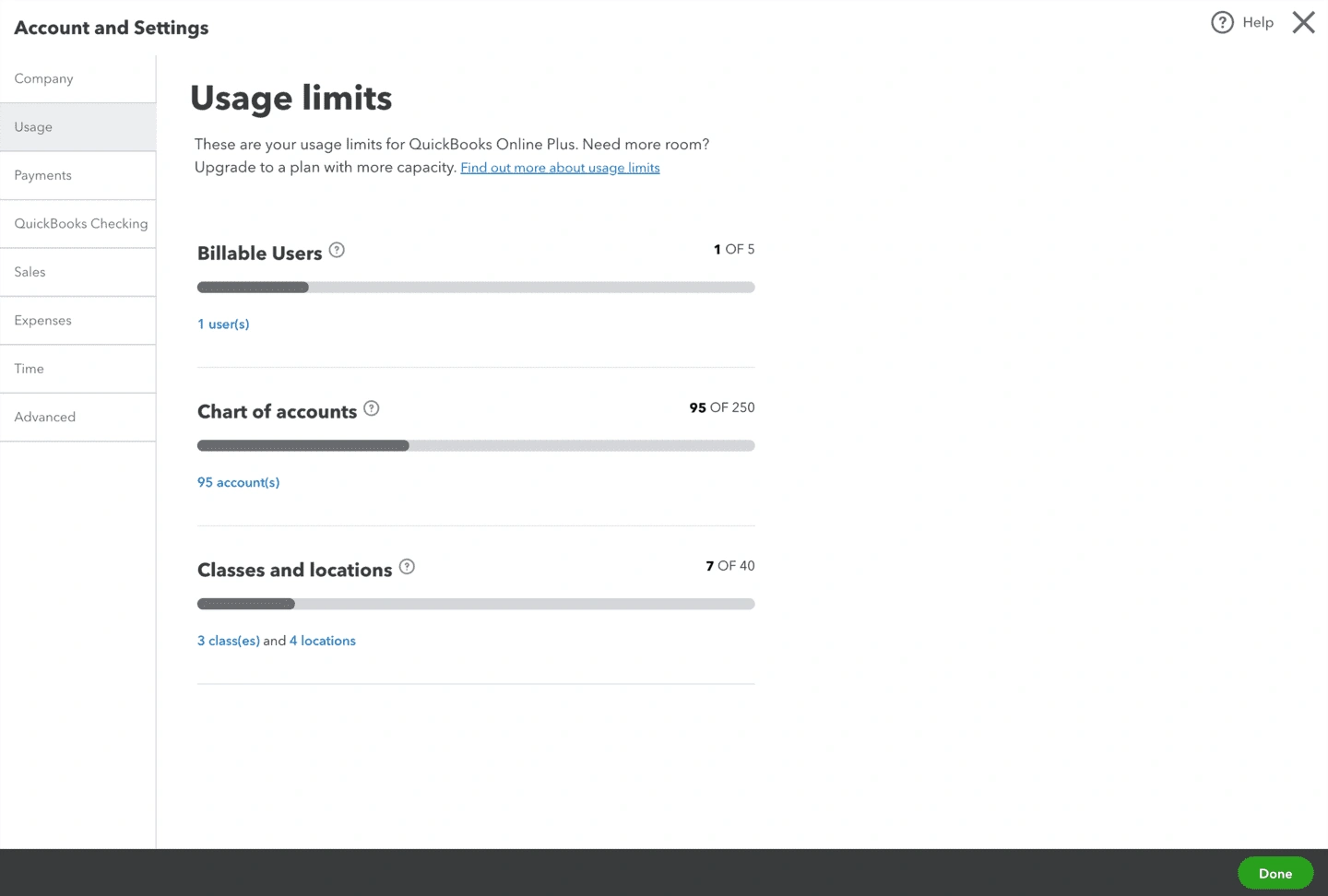
The number of custom fields, classes, and locations that can be used will depend on the plan that you are on. Check out this support article to find out more about usage limits in QuickBooks Online. You can also visit the Usage tab in Account and Settings to see the specific details of usage limits for your account.
Deciding how to use categorization
There are no hard and fast rules for deciding when to use custom categorization methods and which one(s) to use for you, so this is one of those areas where you, as an accounting pro, are really invaluable to you.
- Make sure you have a good understanding of each of the methods and the information you can provide, then use this, along with your knowledge of you and your business, to determine the best fit.
- A useful activity in this process could be meet with you to understand:
- What information they would like to know about their business
- The information on reports that they use the most
- How much time they have to correctly use custom methods
- Starting with the end in mind—what your client is aiming to get out of reporting—gives you something to work towards when designing the custom categorization with QuickBooks.
- When exploring or setting up classes and locations, you might find it useful to run some tests using the sample company. Set up the categorizations that you think will work for you, adding and categorizing some transactions, then run a report to see if you get the results you want. This is a great way of trying out an approach, without having to undo it in your account. (Note: custom fields cannot be added to the sample company.)
Check out our Free Additional Articles