

Keywords: Invoicing, Reports, Account Payable, Quickbooks
Credit: Intuit- Quickbooks Online Photo By: FP
Struggling to Keep Your Books in Order? 📊📅
Let us handle the numbers while you focus on growing your business! Get expert bookkeeping support tailored to your needs.
👉 Click Here for a Free Consultation!
Progress invoicing has benefits for you and your customers. A seamless transition from estimate to progress invoicing, helps to make communication with the customer clear, and this makes it easier for customers to monitor the progress of their project.
Let’s take a look at how to set up progress invoicing with an estimate as the starting point.
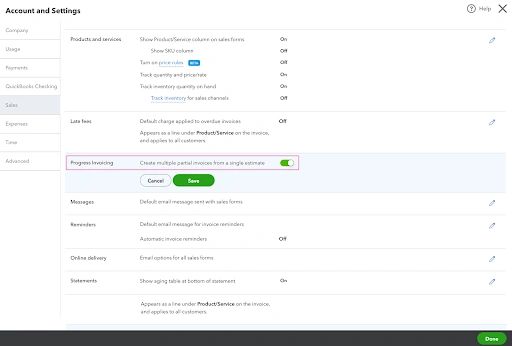
Step 1 : Start by turning on the progress invoicing feature in Quickbooks. To do this, go to the General settings gear and select Account and settings. From the Sales tab, expand Progress Invoicing. Switch on Create Multiple Partial Invoices from a single estimate. Select Save, then Done.
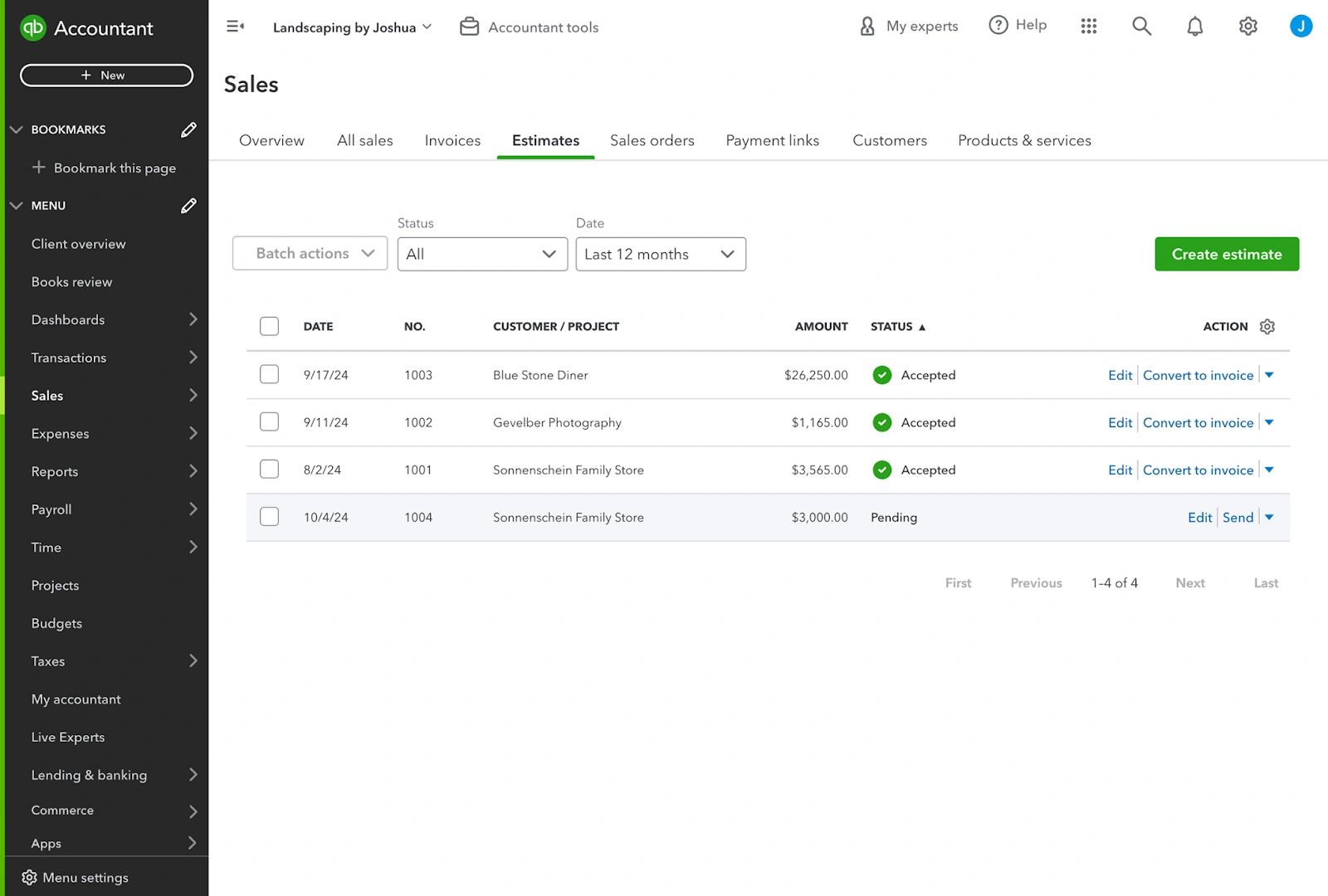
Step 2 : When a customer accepts an estimate, its status can be changed to Accepted and it can be converted to an invoice.
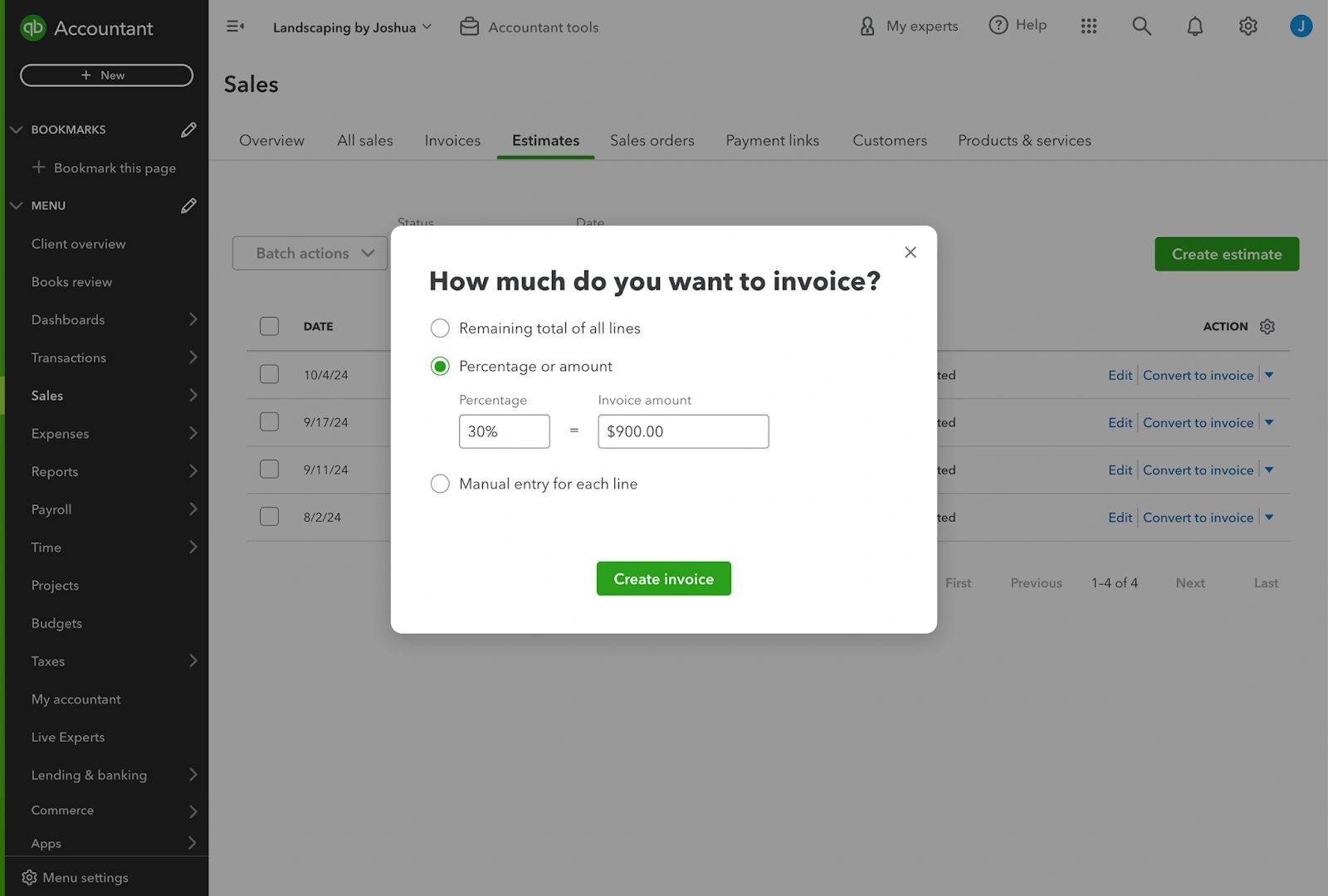
Step 3 : When you select Convert to invoice, you can now choose whether to invoice for a total of all estimated lines, where all the lines are invoiced 100% of the estimate; or, a custom amount for each line, where all lines appear at 0% but are editable separately. For example, if the customer agreed to pay 30% to cover initial expenses, you would enter 30% as the Of each line value and Quickbooks will show the value to be invoiced. Then select Create invoice.
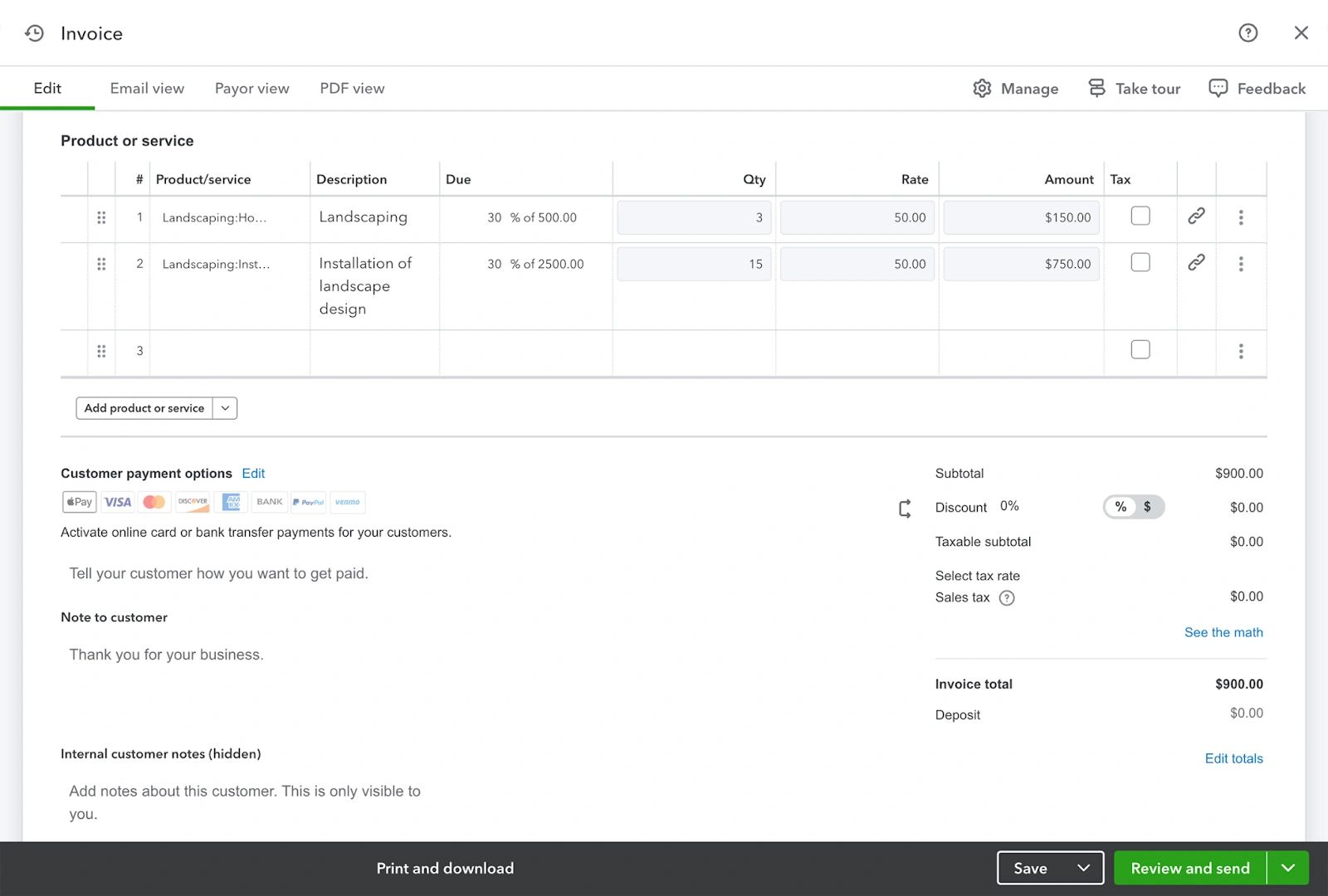
Step 4 : QuickBooks shows the total for each at this invoicing point. The invoice is ready to be sent.
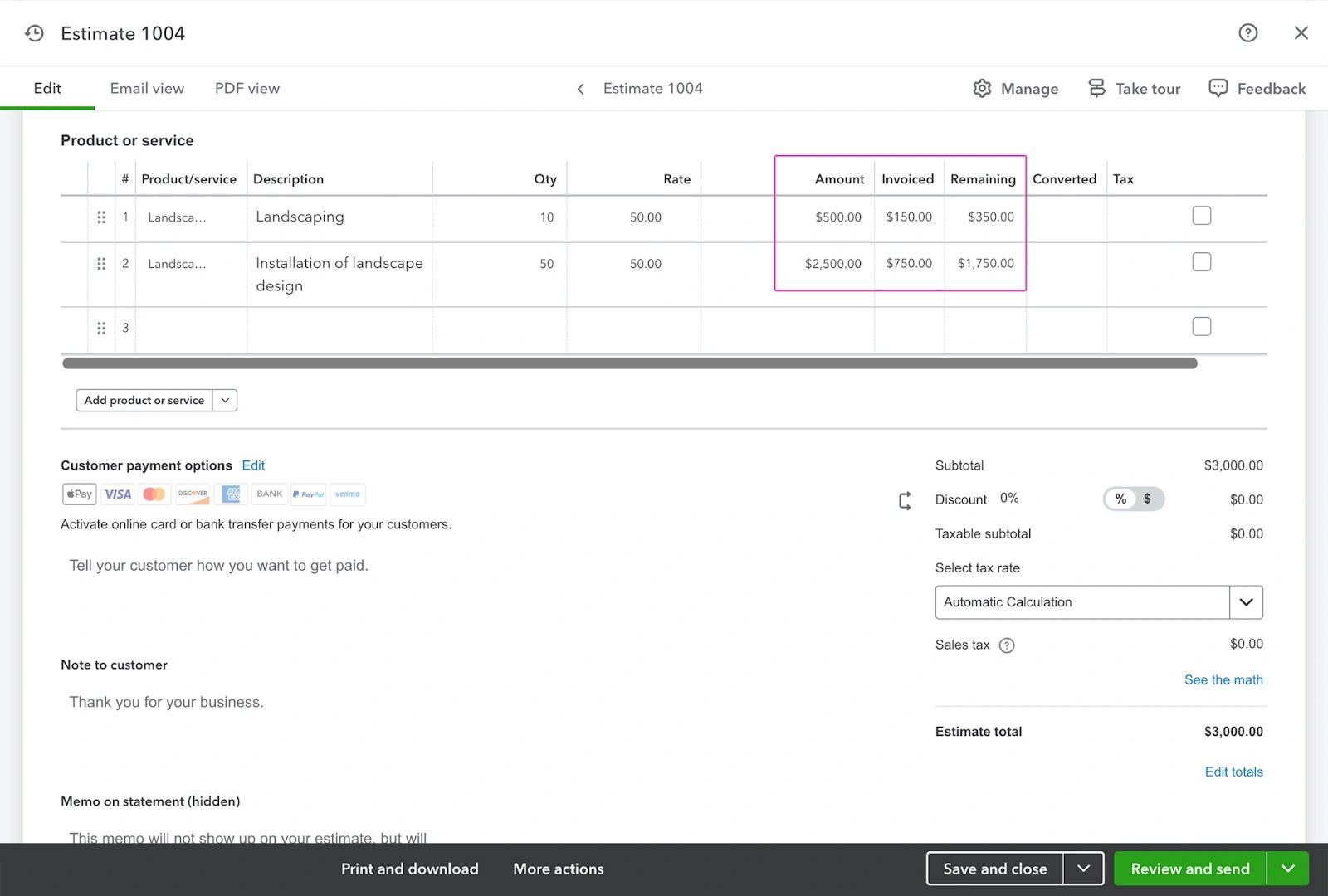
Step 5 : If you go back to the estimate after invoicing the customer for part of it, you’ll see that there are now columns showing the total amount, the amount that’s been invoiced, and the amount remaining.
Starting with the invoice itself
Another way to create an invoice from an estimate is to start with the invoice. After creating and closing the estimate, enter the customer’s name in the new invoice to open a panel with their estimate. Select the estimates to add to the invoice. You can charge the total, a percentage, or a custom amount for each line. The invoice will be populated with the line items calculated at the defined estimate values, ready to be sent to you.
When creating another invoice for this customer, QuickBooks accounts for the already invoiced amount, allowing you to invoice the remaining estimate. Custom amounts or percentages can also be invoiced as before.
Adjusting progress invoices in QuickBooks.
Progress invoicing offers a lot of flexibility. Let’s move on to the second task and look at some of the things that can be adjusted.
Increasing Individual invoice line amounts.
To increase the invoice amount in one or more lines of an invoice based on an estimate, select the Due column on the line(s) of the invoice you want to change—this column shows the percentage or amount related to the line item—and overwrite the percentage or amount to be invoiced.

Increasing the total amount of an estimate.
There are two ways to increase the total amount of an estimate:
- Add a line to the estimate or change the total amount
- Create a new estimate for the extra amount and make a new progress invoice out of it

Deleting a line on a progress invoice.
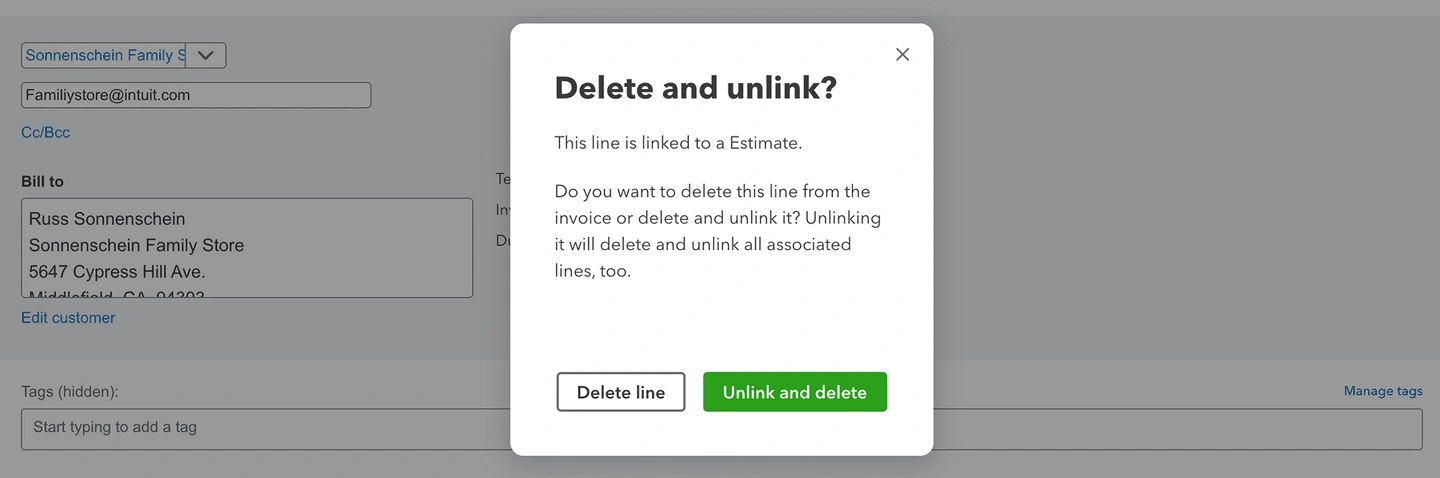
To delete a line on a progress invoice, select the three dots on the right side of the line and select Delete. From the popup, select the Delete line. This removes the line from the invoice and puts the amount back on the estimate.
Do not choose Unlink and delete from the popup! This removes all the lines of the estimate for the invoice. If you want to invoice from the estimate, you will have to add the estimate from the panel on the right again.
Adding an estimate summary
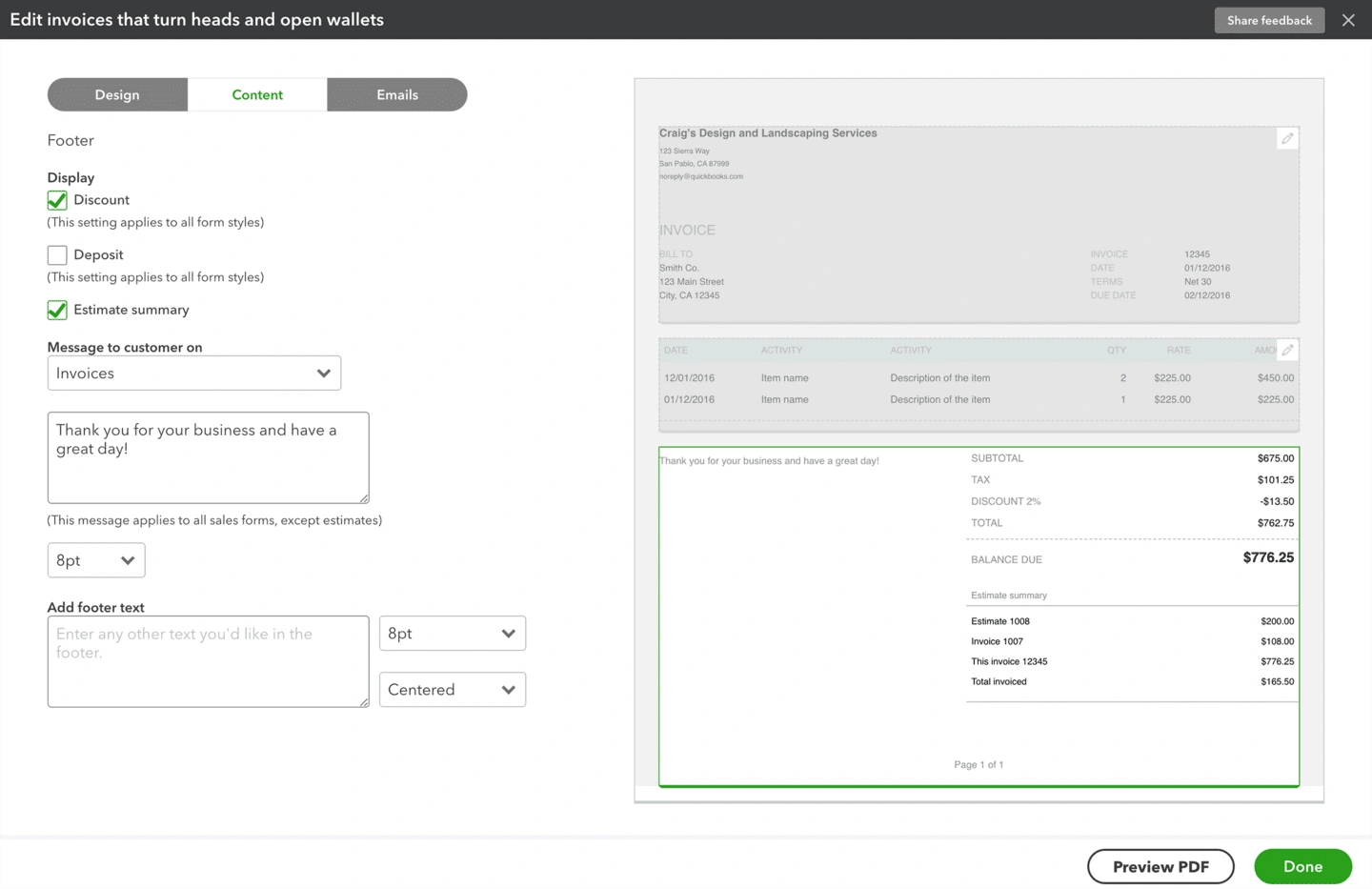
To add a summary to estimates, go to the General settings gear and select Custom form styles. Choose the style that is the default and edit the Content.
Select the footer on the right to edit its settings, and check Estimate summary on the left.
You should now see the estimated number and amount, invoices previously created, the current invoice, and the total amount invoiced.
Reporting on progress invoices in QuickBooks.
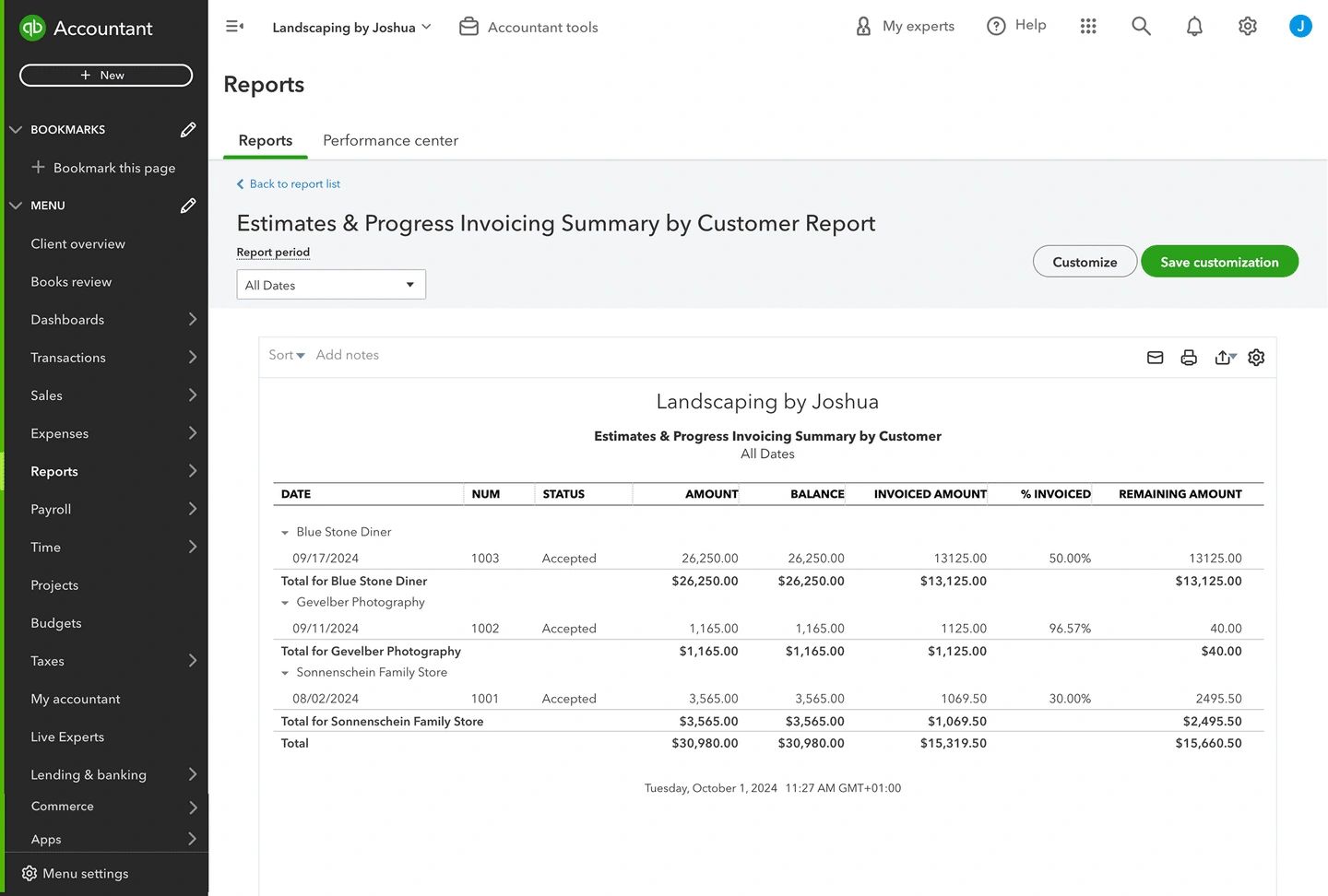
The final task is to report on progress invoices. The Estimates & Progress Invoicing Summary by Customer Report gives you a complete list of all estimates and connected progress invoices—simple!
It tracks how much of an estimate has been invoiced to date, how much remains to be invoiced, and whether there are any balances left for the customer to pay.
Check out our Free Additional Articles