

Keywords: Transaction review, Reconcile, Invoicing, Quickbooks.
Credit: Intuit- Quickbooks Online Photo By: FP
Struggling to Keep Your Books in Order? 📊📅
Let us handle the numbers while you focus on growing your business! Get expert bookkeeping support tailored to your needs.
👉 Click Here for a Free Consultation!
Creating additional tasks in Books review
You’ve seen how the Books review center steps you through the main period-end tasks, providing easy links to the relevant sections of QuickBooks. You may require different tasks at period end, the Books review center also allows you to create additional tasks in each of the four tabs.
(Note, in the Final review tab, adding new items comes under the heading Reports, but the process for adding reports is the same as adding a new task.)
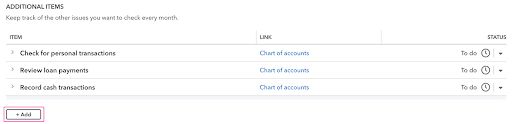
Some additional items will appear by default. For example, in the Transaction review tab, you’ll see Check for personal transactions, Review loan payments, and Record cash transactions.
You can edit or delete these as needed. To add an additional task, start by selecting + Add.
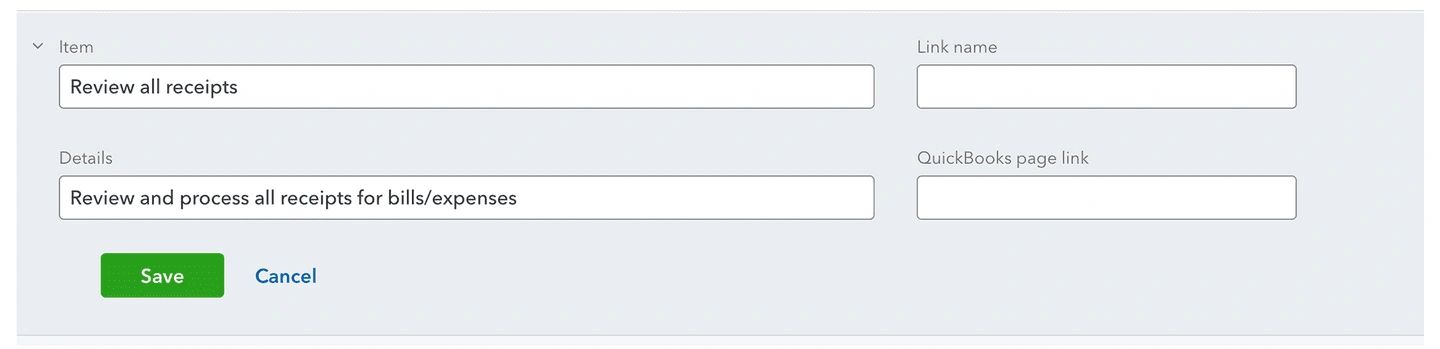
Give the item a name and a brief description.
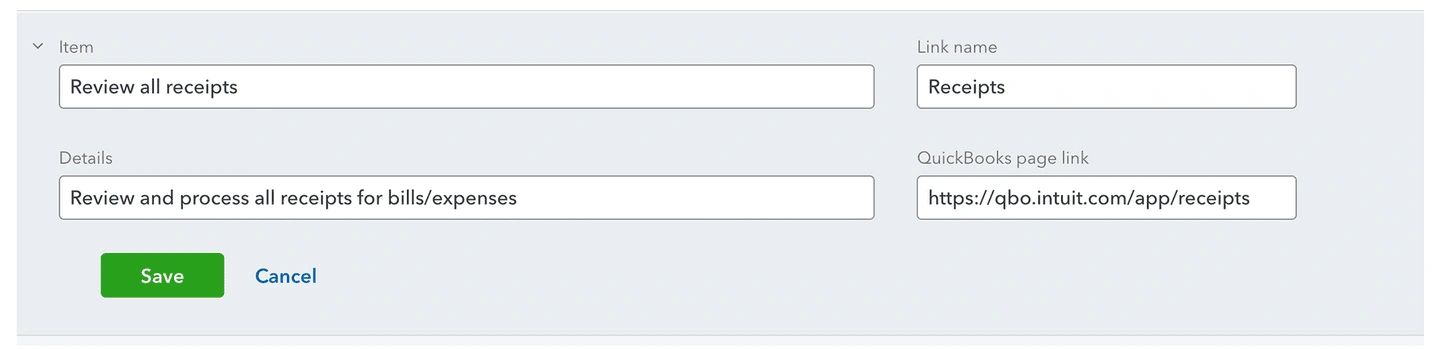
You can also add a link to the relevant section of QuickBooks. Give the link a name, open the relevant section of QuickBooks in a separate window, and copy the link into the Quickbooks page link field.
When you have added the details of the task, select Save.
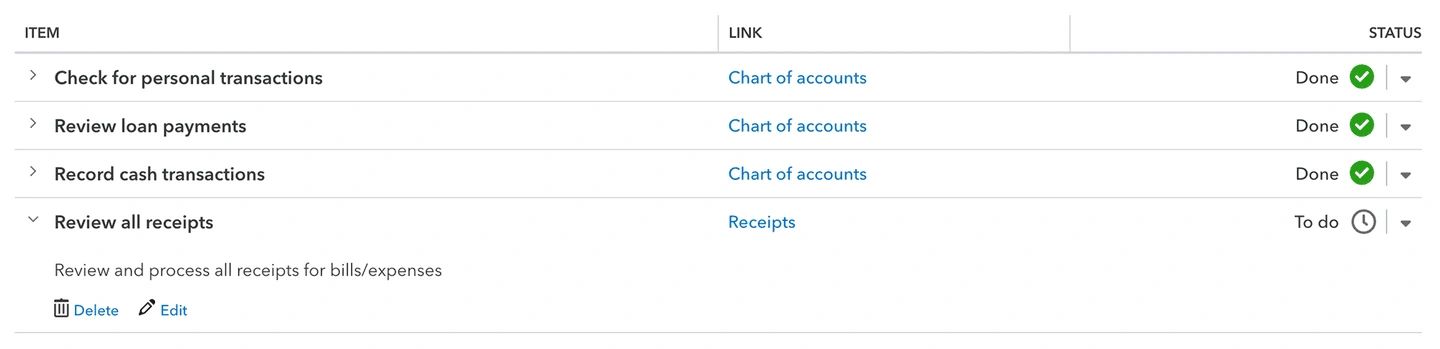
Once a task is added, selecting the text in the Link column will open the relevant section of QuickBooks in a new window. You can also use the status indicators to show when the task is done.
Selecting the name of an additional task will expand that item, displaying the details of the task, and giving you the option to delete or edit it.
Adding additional tasks and reports in the Books review center is a great way of customizing period-end tasks for you, and making sure the same activities are carried out to each period. For example, reviewing people’s KPIs or creating custom reports can really add value and open up opportunities for advisory conversations.
Once you’ve added a task or report to one of the tabs in the Books review center, it will appear each time you carry out period-end tasks.
Note : These tasks are added to your account, and will be listed regardless of who carries out the review. You need to go into each account to set up the additional tasks specific to them. It is a great way of tailoring QuickBooks to yourself in a unique way.
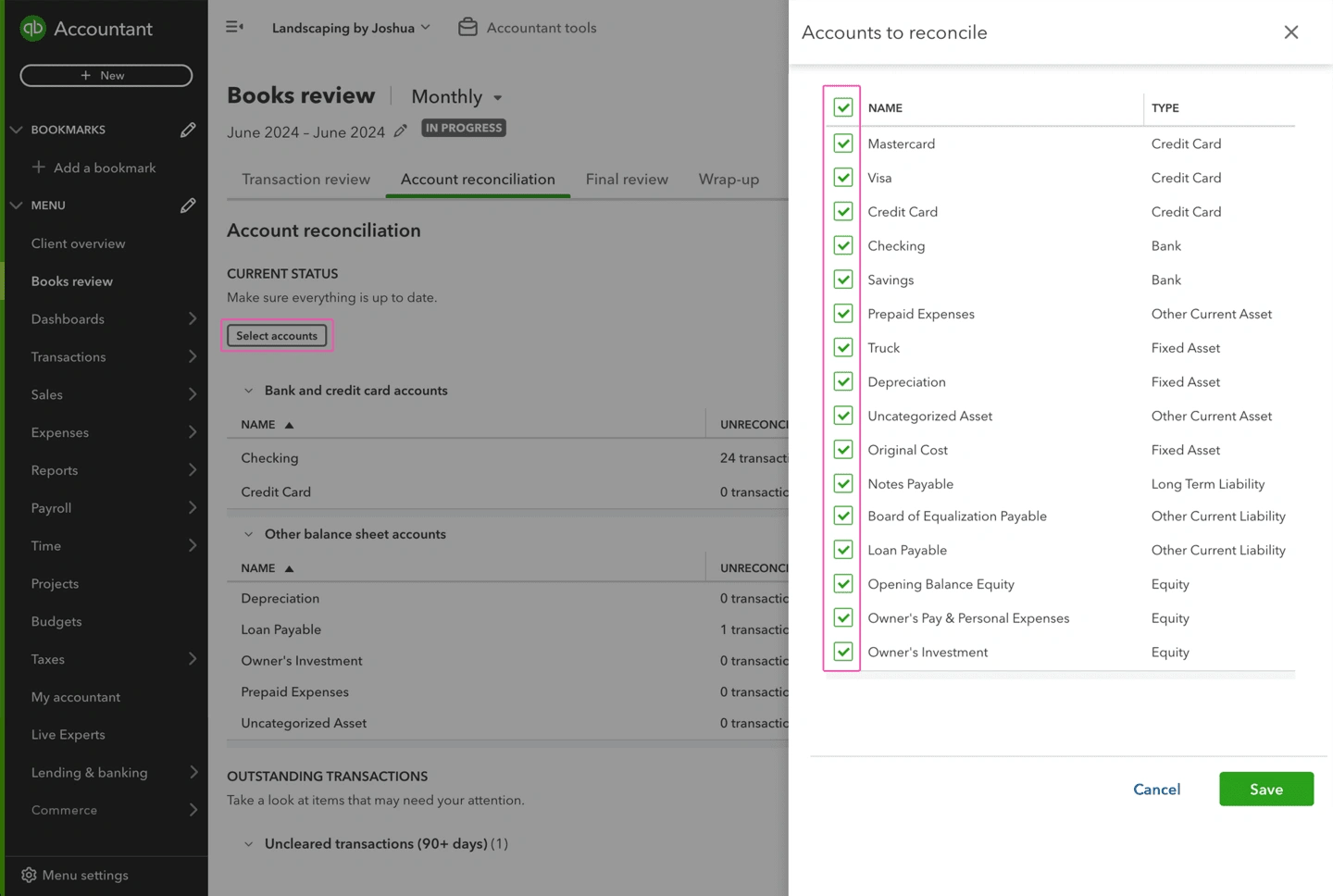
Selecting accounts to reconcile in Quickbooks Online.
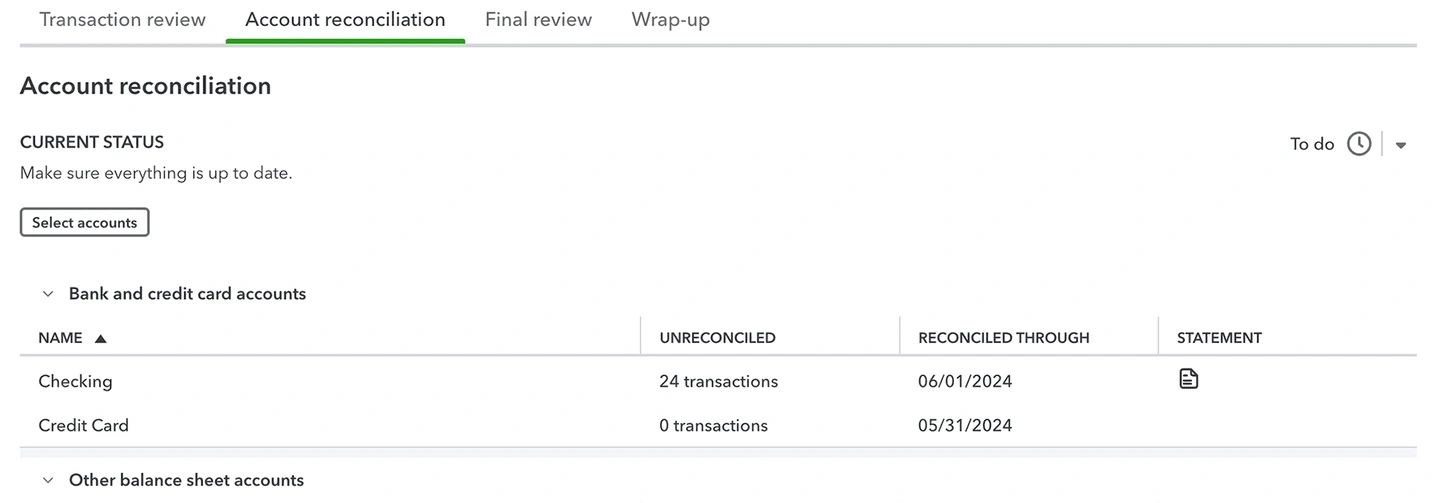
The Account reconciliation tab of Books review presents you with a list of bank, credit card, and balance sheet accounts, when they were last reconciled, and how many transactions are left to reconcile. You can decide which accounts appear on this tab by selecting Select accounts, then selecting the accounts you want to reconcile from the list that is displayed.
Setting up reports in Quickbooks Online.
Favorites and report options
The profit and loss report and the balance sheet report will both be useful as you work through the period-end workflow. There may also be other reports specific to you that you will return to at these times. There are set up tasks that you can do to make it easier to find and use these reports.
Favorites
In the overview of the Reports center, you saw how to find a favorite the reports that you will use most often.
This might be different for you, and it’s worth taking the time to set this up in each of your accounts. For example, people with a landscaping company might be interested in the Estimates and Progress Invoicing reports, whereas a retail customer with a small team might like to see the Sales by Product/Service, Inventory Valuation, and Payroll reports.

Report options
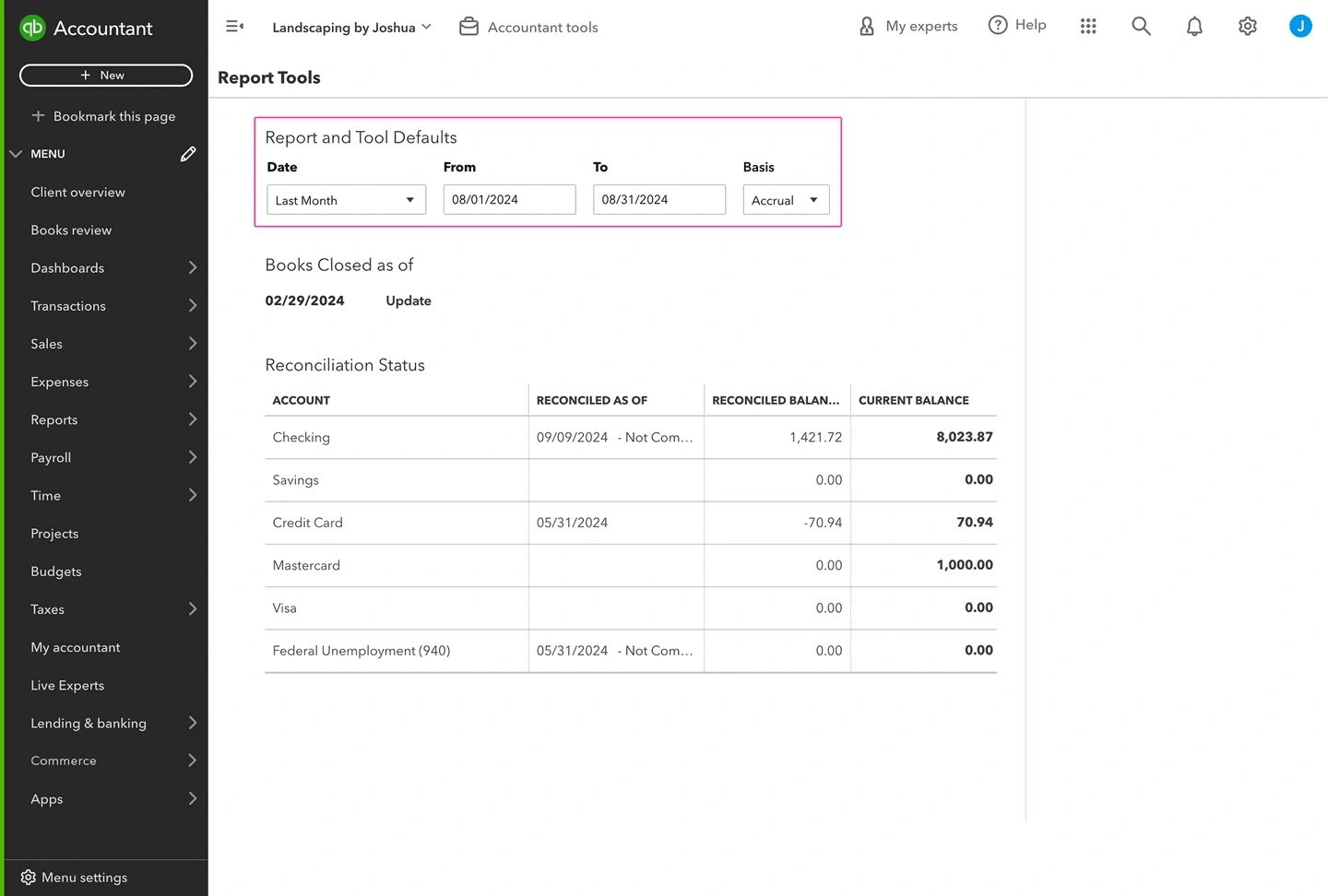
When completing period-end tasks, you’re likely to want to view reports for that set period. In Report options you can set the default time frames for reports, so that any report you open will show data for the relevant period. This will save you time as you work through your period-end tasks.
Within your QuickBooks account, go to Accountant tools and select Reports options. You can then set the default time frame for reports, for example, to Last Month, Last Quarter, Last Year, or a Custom range.
Here, you can also set the default for reports to be cash or accrual basis.
When carrying out your reviews, make sure that any reports you’re comparing are for the same period, and use the same accounting method. Otherwise you might find yourself trying to resolve issues that don’t exist!
Management reports
The Wrap-up stage of Books review involves sending reports to you. What these contain, and how they look, can be set up ahead of time so that they’re ready for you when it comes to period end. For example, you might view your management reports containing financial statements. Other useful reports can still be viewed by you, such as accounts receivable and payable, sales and transactions reports.
As you are accessing to your account through QuickBooks Online, you’ll have access to two templates in the Management reports tab of the Reports center:
- Basic Company Financials—which includes the profit and loss statement, the balance sheet, and the statement of cash flows
- Expanded Company Financials—which includes the accounts receivable and accounts payable aging detail reports, as well as the profit and loss statement, the balance sheet, and the statement of cash flows
Note: You don’t have access to these templates. Instead, when you view this tab of the Reports center, you will see the Company Overview, Sales Performance, and Expenses Performance reports.
You can select a report name to open it, edit it, and save it. If you make changes to a template report, you can save it as a copy.

Collecting information in Quickbooks Online.
There is certain information that you will need from your bank before you can complete your period-end review.
If your bank and credit card accounts are connected to QuickBooks, the bank statements may automatically be pulled in, and can be accessed from the Account reconciliation tab of the Books review.
For any bank or credit card accounts that aren’t connected, you’ll need to obtain these statements before you can reconcile these accounts.
Depending on you, there may be other documents that you need before you can complete your period-end review.
For example, these could include:
- Loan statements
- Invoicing information from healthcare that are required to manage invoicing in a separate system
- Sales information from e-commerce who use separate software to manage your sales and sales tax
You are busy people with businesses to run, so getting the documents you need from your account can sometimes be challenging! Give yourself plenty of time to get the files you need so you can complete your period-end tasks in a timely manner.
If any of your accounts don’t have their bank feeds connected yet, it’s worth a conversation with them about the efficiencies it could bring. You could also see if it’s possible to have a view only login for your bank account, so you can access statements yourself.
Once you’ve added a task or report to one of the tabs in the Books review center, it will appear each time you carry out period-end tasks.
Conclusion: Adding additional tasks and reports in the Books review center is a great way of customizing period-end tasks for you and making sure the same activities are carried out each period. For example, reviewing your KPIs or creating custom reports, can really add value and open up opportunities for advisory conversations.
Check out our Free Additional Articles